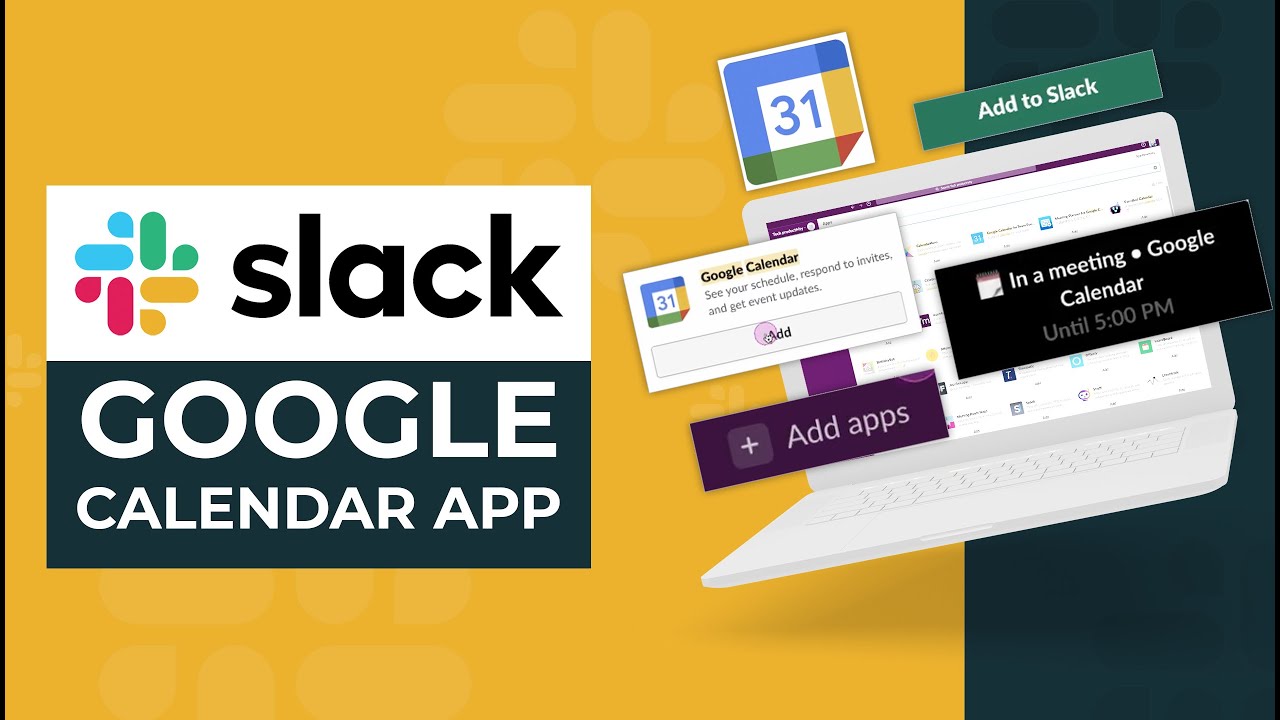
Slack integration with Google Calendar offers a powerful way to enhance productivity and streamline workflows by seamlessly connecting two essential tools for modern communication and time management. This integration allows users to manage their schedules, receive reminders, and collaborate on events directly within their Slack workspace, eliminating the need to switch between applications and fostering a more efficient and collaborative work environment.
The integration provides a centralized hub for calendar information, enabling users to view upcoming events, schedule meetings, and receive timely reminders without leaving their Slack channels. This eliminates the need to constantly check multiple applications and ensures that important deadlines and meetings are never missed.
Integrating Slack with Google Calendar

Integrating Slack with Google Calendar streamlines your workflow and improves team communication by centralizing calendar information within your preferred communication platform. This integration eliminates the need to switch between applications, saving time and improving productivity.This integration proves particularly beneficial for teams that rely heavily on scheduling and coordination.
It allows for seamless communication and collaboration around events, meetings, and deadlines.
Key Features and Functionalities
This integration offers a range of features designed to enhance team collaboration and calendar management.
- Event Notifications:Receive real-time notifications in Slack about upcoming events, reminders, and changes to your calendar schedule. This ensures you stay informed and prepared for upcoming commitments.
- Calendar Sharing:Share your Google Calendar with specific Slack channels or individuals, enabling team members to view and stay updated on your schedule. This promotes transparency and allows for efficient coordination of shared events.
- Event Creation:Directly create Google Calendar events from Slack using simple commands. This eliminates the need to switch between applications and allows for quick and easy scheduling.
- Meeting Room Booking:Integrate with meeting room booking systems to automatically reserve meeting rooms directly from Slack based on calendar availability. This simplifies the process of scheduling meetings and ensures efficient use of resources.
Setting Up the Integration
This section will guide you through the process of integrating your Slack workspace with your Google Calendar. We’ll cover the necessary steps, permissions, and configurations to ensure a smooth setup.
Permissions and Configurations
Before you begin, it’s crucial to understand the permissions required for this integration. You’ll need to grant the Slack app access to your Google Calendar, allowing it to read and write events. This ensures that the integration can seamlessly update your calendar with events created in Slack and vice versa.To set up the integration, follow these steps:
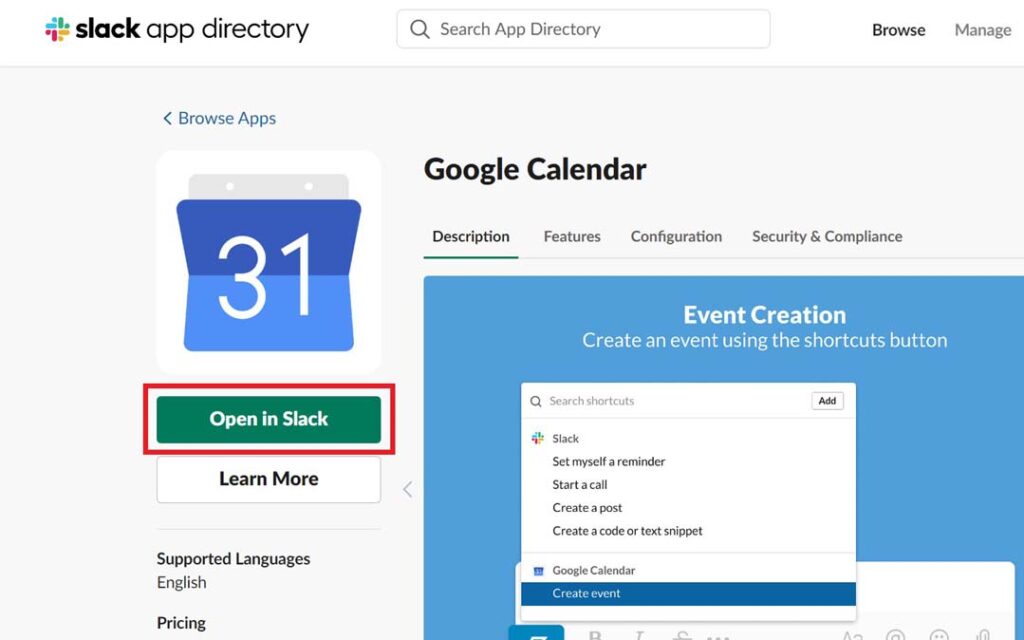
- Visit the Slack App Directory and search for “Google Calendar.”
- Select the official Google Calendar app and click “Add to Slack.”
- You’ll be redirected to a Google authorization page. Here, you’ll need to grant the Slack app access to your Google Calendar.
- Review the requested permissions and click “Allow” if you agree.
- Once authorized, you’ll be redirected back to Slack, where you can configure the integration further.
Connecting Slack Channels to Google Calendars
The next step involves connecting specific Slack channels to your Google Calendars. This allows you to manage events and reminders within the relevant channels.
- In Slack, navigate to the “Apps” section and select the Google Calendar app.
- Click on “Connect a Channel” to link a Slack channel to a Google Calendar.
- Choose the Slack channel and the Google Calendar you wish to connect.
- Confirm the connection, and you’re ready to start using the integration.
Troubleshooting Common Setup Issues
While the setup process is straightforward, you might encounter some common issues. Here are some tips for troubleshooting:
- Ensure you have the necessary permissions:Double-check that you have granted the Slack app access to your Google Calendar.
- Verify the Google Calendar connection:Make sure your Google Calendar is properly connected to the Slack app.
- Check for errors in the Slack app:Look for any error messages in the Google Calendar app’s settings within Slack.
- Try restarting the Slack app:Sometimes, a simple restart can resolve minor issues.
- Contact Slack support:If you’re still experiencing problems, reach out to Slack support for assistance.
Scheduling and Reminders: Slack Integration With Google Calendar
The integration of Slack with Google Calendar simplifies the process of scheduling meetings and events while ensuring you never miss an important date. You can create and manage your schedule directly within Slack, eliminating the need to switch between applications.
Calendar Reminders
The integration seamlessly delivers calendar reminders through Slack notifications, ensuring you stay informed about upcoming events. These reminders can be customized to suit your preferences.
- Frequency:You can set reminders to be delivered at specific intervals before an event, such as 15 minutes, 30 minutes, an hour, or even a day in advance.
- Delivery Methods:Reminders can be sent via direct messages or in specific channels, ensuring they reach you in the most convenient way.
Collaboration and Communication
Integrating Slack with Google Calendar goes beyond just managing your personal schedule; it transforms how teams communicate and collaborate around shared events. The integration allows for seamless communication about calendar events within Slack channels, fostering better team coordination and reducing scheduling conflicts.
Sharing Calendar Updates
The integration enables teams to stay informed about changes to shared calendars. When someone adds, updates, or cancels an event on the Google Calendar, Slack users can receive real-time notifications about these changes. These notifications can be customized to include relevant details like the event title, time, location, and description.
Receiving Notifications about Changes
The integration allows users to receive notifications about changes to calendar events within Slack. This feature is particularly useful for keeping team members informed about changes to meetings, deadlines, or other important events. Users can customize their notification settings to receive alerts about specific events or changes made to specific calendars.
Fostering Team Coordination
The integration facilitates smoother team coordination by providing a central platform for communication and collaboration around calendar events. Teams can easily discuss upcoming events, delegate tasks, and share relevant information directly within Slack channels. This centralized communication stream helps to avoid confusion and ensures that everyone is on the same page.
Reducing Scheduling Conflicts
By allowing teams to view and update calendars within Slack, the integration helps to minimize scheduling conflicts. Users can quickly see the availability of team members and avoid scheduling meetings or events during times when others are already booked. This feature promotes efficient scheduling and reduces the likelihood of missed meetings or conflicting commitments.
Integrations with Other Tools

The Slack integration with Google Calendar goes beyond simply managing your schedule; it seamlessly connects with other popular tools to enhance your productivity and streamline your workflow. Integrating with project management platforms, CRM systems, or other business applications can unlock a wealth of possibilities, fostering greater collaboration and efficiency.
Benefits of Integration
Integrating Slack with other tools offers several advantages that can significantly impact your workflow. By connecting these platforms, you can:
- Centralized Communication and Collaboration:Integrating with project management platforms like Asana, Trello, or Jira allows you to discuss tasks, deadlines, and progress directly within Slack. This eliminates the need to switch between multiple applications and ensures everyone stays on the same page.
- Improved Task Management:Integrating with CRM systems like Salesforce or HubSpot lets you manage customer interactions, track leads, and schedule follow-ups directly within Slack. This simplifies your sales process and provides a centralized view of customer activity.
- Automated Workflows:Connecting Slack with automation tools like Zapier allows you to create automated workflows that trigger actions based on events in Google Calendar. For example, you can automatically create a Slack notification when a new event is added to your calendar or when a meeting is canceled.
Security and Privacy
Integrating Slack and Google Calendar can significantly enhance productivity, but it’s essential to be aware of the security and privacy implications involved. This section will Artikel the measures in place to protect your data and provide guidance on configuring privacy settings for optimal data protection.
Data Protection Measures
The integration of Slack and Google Calendar involves the sharing of data between the two platforms. To safeguard your information, both Slack and Google have implemented robust security measures.
- Encryption:Both platforms use industry-standard encryption protocols to secure data transmission between your device and their servers. This ensures that your data is protected from unauthorized access during transit.
- Access Controls:Both Slack and Google offer granular access controls, allowing you to specify who can access your calendar data and what level of access they have. This helps prevent unauthorized individuals from viewing or modifying your calendar information.
- Two-Factor Authentication (2FA):Enabling 2FA on both platforms adds an extra layer of security by requiring an additional code from your mobile device or email to log in. This makes it significantly more difficult for unauthorized individuals to gain access to your accounts.
- Regular Security Audits:Both companies conduct regular security audits to identify and address potential vulnerabilities. These audits help ensure that their systems are secure and protected against malicious attacks.
Privacy Implications, Slack integration with google calendar
Connecting Slack and Google Calendar allows you to share calendar information with your Slack workspace. This can be beneficial for collaboration and communication, but it’s crucial to consider the privacy implications of this data sharing.
- Visibility of Calendar Events:When you integrate Slack and Google Calendar, your calendar events become visible to members of your Slack workspace. This includes event details such as the title, time, location, and attendees. Be mindful of the sensitivity of your calendar events and only share information that you are comfortable with.
- Data Retention:Both Slack and Google store your data for a certain period. While this is necessary for providing their services, it’s important to understand the data retention policies of both platforms and how long your calendar information will be stored.
Privacy Setting Configuration
To ensure optimal data protection, it’s essential to configure your privacy settings carefully.
- Control Calendar Visibility:Both Slack and Google offer options to control the visibility of your calendar events. You can choose to share all events, only specific events, or keep your calendar completely private.
- Limit Access to Your Workspace:Within Slack, you can restrict access to your calendar data to specific channels or groups. This allows you to share calendar information only with relevant individuals or teams.
- Review App Permissions:When connecting Slack and Google Calendar, ensure that you understand the permissions granted to the integration. Only allow access to the data that is absolutely necessary for the integration to function.
Best Practices and Tips
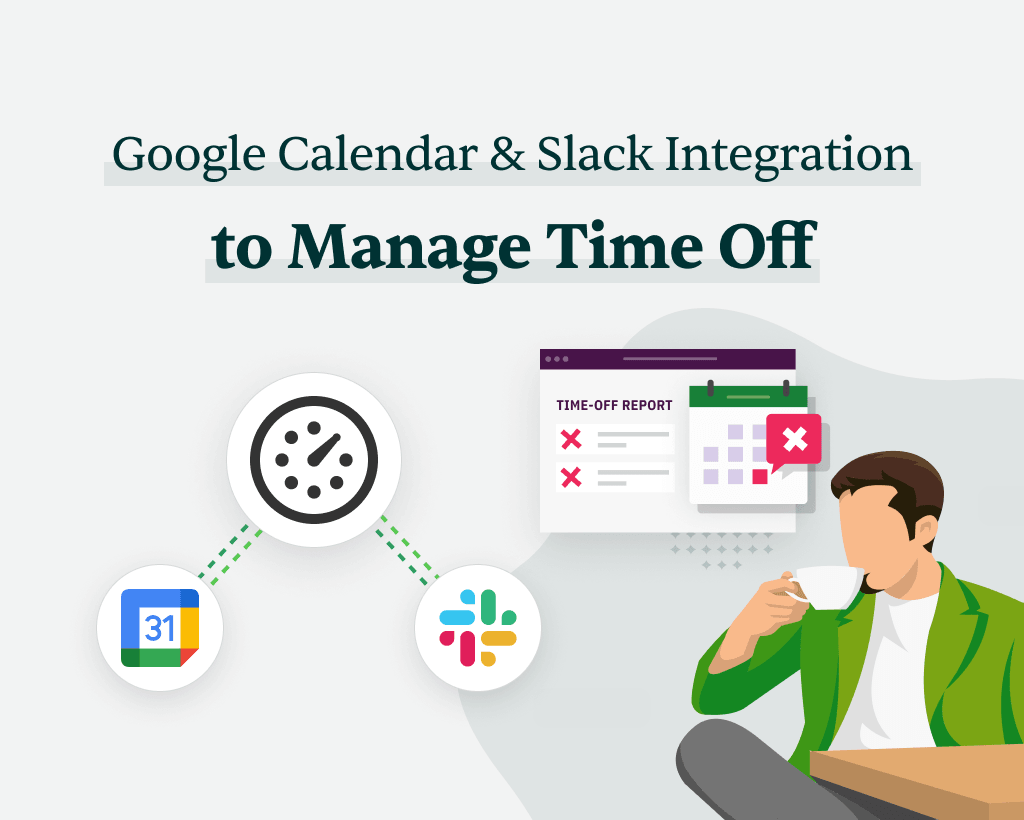
The integration of Slack and Google Calendar offers a seamless workflow, but optimizing its use requires understanding best practices and adapting it to your unique work style and team size. Here are some tips to help you maximize the benefits of this integration.
Utilizing the Integration Effectively
- Clear and Concise Event Descriptions:When creating events in Google Calendar, use clear and concise descriptions that accurately reflect the event’s purpose. Include relevant details like location, attendees, and any necessary materials. This ensures everyone on the team is well-informed and prepared.
- Use Slack Notifications Strategically:While Slack notifications are helpful, avoid overwhelming your team with excessive notifications. Configure your settings to receive notifications for essential events, such as deadlines or meetings that require immediate attention. Consider setting specific notification times to minimize distractions.
- Integrate with Other Tools:The power of this integration extends beyond just Slack and Google Calendar. Explore other tools that can connect to this integration, such as project management platforms or task management apps. This creates a comprehensive workflow that streamlines various aspects of your work.
Connecting your Slack workspace to Google Calendar is a great way to keep everyone on the same page and avoid scheduling conflicts. You can even integrate your calendar with external sources, like the Santa Fe Reporter calendar , to stay up-to-date on local events and happenings.
This integration allows you to easily share important dates and reminders with your team, ensuring everyone is in the loop and can plan accordingly.
Optimizing for Different Work Styles
- Visual Learners:For visual learners, leverage the calendar’s visual interface to create color-coded events or use icons to differentiate tasks. This provides a clear visual representation of upcoming events and responsibilities.
- Task-Oriented Individuals:For those who prefer a task-oriented approach, utilize the integration to create event reminders or task lists within Slack. This ensures that you stay focused on your tasks and prioritize them effectively.
- Team-Oriented Environments:In team-oriented environments, consider creating shared calendars for team events or projects. This allows everyone to stay synchronized on deadlines, meetings, and project milestones.
Maximizing Productivity and Collaboration
- Real-Time Collaboration:The integration facilitates real-time collaboration by allowing team members to discuss events or tasks directly within Slack. This eliminates the need for separate email chains or meetings, fostering a more efficient and responsive workflow.
- Reduce Meeting Fatigue:Utilize the integration to schedule meetings effectively, avoiding unnecessary or unproductive meetings. The calendar’s availability features can help identify optimal times for meetings, minimizing disruptions to individual schedules.
- Centralized Information:The integration provides a centralized hub for all your calendar events and Slack conversations related to those events. This eliminates the need to search across multiple platforms for information, saving time and effort.
Future Directions
The integration of Slack and Google Calendar has revolutionized workplace communication and collaboration. As technology continues to evolve, the integration is poised for further advancements, enhancing productivity and streamlining workflows.
Emerging Technologies and Trends
Emerging technologies and trends are shaping the future of calendar management and collaboration. Artificial intelligence (AI) and machine learning (ML) will play a pivotal role in enhancing the integration.
- AI-Powered Scheduling:AI algorithms can analyze user data, such as meeting patterns, preferences, and availability, to suggest optimal meeting times and automate scheduling. For example, AI could analyze past meeting times and attendee availability to suggest the most convenient time for a recurring meeting.
- Intelligent Reminders:AI-powered reminders can be personalized based on individual user needs and preferences. For example, reminders could be delivered through different channels, such as Slack notifications, email, or even voice assistants, depending on the user’s preference and the urgency of the event.
- Contextual Collaboration:AI can enhance collaboration by providing contextual information about meetings, participants, and related tasks. For instance, AI could provide a summary of the meeting agenda, relevant documents, and previous meeting discussions before a meeting.
Future of Calendar Management and Collaboration
The future of calendar management and collaboration will be characterized by greater automation, personalization, and integration with other workplace tools.
- Seamless Integration:The integration between Slack and Google Calendar will become even more seamless, enabling users to access calendar information and manage events directly within Slack. This will eliminate the need to switch between applications and streamline workflows.
- Enhanced Collaboration:The integration will facilitate more collaborative calendar management, allowing users to share calendars, delegate tasks, and manage schedules together. For example, team members could share their calendars to view each other’s availability and schedule meetings accordingly.
- Personalized Experiences:Calendar management will become more personalized, allowing users to customize their calendar views, notifications, and preferences. This will enable users to tailor their calendar experience to their specific needs and workflows.
Case Studies and Real-World Examples
Integrating Slack with Google Calendar can significantly enhance productivity and collaboration within organizations. This section explores real-world examples of how companies are leveraging this integration to streamline workflows and improve communication.
Impact on Productivity and Collaboration
The integration of Slack and Google Calendar can significantly impact productivity and collaboration within organizations. This section will explore how organizations are using this integration to improve their workflows and achieve better results.
- Improved Meeting Scheduling: By integrating Slack with Google Calendar, organizations can streamline the process of scheduling meetings. Teams can easily propose meeting times directly within Slack, and attendees can quickly confirm their availability through the integrated calendar view. This eliminates the need for back-and-forth emails or phone calls, saving valuable time and ensuring everyone is on the same page.
- Enhanced Task Management: The integration allows for seamless task management by linking calendar events to specific tasks in Slack channels. This helps teams stay organized and track progress on projects, ensuring everyone is aware of deadlines and responsibilities. By associating calendar events with tasks, teams can easily monitor project timelines and ensure deadlines are met.
- Real-Time Communication: The integration enables real-time communication around calendar events. Teams can receive notifications about upcoming meetings or deadlines directly within Slack, ensuring everyone is informed and prepared. This eliminates the need for separate communication channels, streamlining information flow and promoting timely responses.
- Improved Team Collaboration: The integration fosters a more collaborative environment by facilitating communication and information sharing around calendar events. Teams can discuss meeting agendas, share relevant documents, and collaborate on tasks directly within the Slack channel associated with the event. This centralizes communication and promotes a more cohesive team effort.
Case Studies
The integration of Slack and Google Calendar has proven its value in various industries and organizations. Here are some real-world examples:
- Tech Startup:A tech startup used the integration to streamline their product development process. By linking calendar events to specific development tasks in Slack channels, the team could easily track progress and ensure deadlines were met. This resulted in a more efficient development cycle and faster time to market.
- Marketing Agency:A marketing agency implemented the integration to improve client communication and project management. By integrating calendar events with client meetings and deadlines, the agency could ensure everyone was aware of upcoming events and responsibilities. This led to improved client satisfaction and reduced missed deadlines.
- Non-profit Organization:A non-profit organization used the integration to coordinate volunteer activities and events. By integrating calendar events with volunteer schedules and tasks, the organization could easily manage volunteer resources and ensure efficient event planning. This resulted in increased volunteer engagement and improved event execution.
Helpful Answers
How does Slack integration with Google Calendar improve communication?
The integration allows users to share calendar updates and receive notifications about changes directly within Slack channels, fostering better team coordination and reducing scheduling conflicts.
Can I customize calendar reminders through Slack?
Yes, the integration offers customization options for reminder frequency and delivery methods, allowing users to choose the most suitable settings for their workflow.
What security measures are in place for user data during integration?
Both Slack and Google Calendar employ robust security measures to protect user data during the integration process, ensuring privacy and data protection.
